
You’ve Scheduled A Video Visit – Now What?
What You'll Need
To receive an invitation and to get ready for your visit. you will need:
- Your mobile number or
- Your email address
This must be the same mobile number and email address CHAS Health has on file. You will need a reliable internet connection during your appointment. Data rates may apply if your device is not connected to Wi-Fi.
If you need assistance, please call 509.444.8200
Check Your Speed
To determine if your Wi-Fi is acceptable for video visits, go to www.speedtest.net and press the Start button to run a speed test. If your download speed is at least 3 Mbps and upload speed is at least 1 Mbps, your internet connection is acceptable for video visits.
Device Requirements
The telehealth experience works on both desktop and mobile. Browser requirements include:
Desktop
- Google Chrome (latest three versions) – macOS & Windows
- Microsoft Edge (Chromium-based, version 79+) – Windows
- Safari (version 12+) – macOS
- Firefox (latest three versions) – macOS & Windows
Mobile
- Google Chrome on Android (latest three versions)
- Samsung Browser (version 12+) on Android
- Safari on iOS 12+ (other browsers such as Chrome on iOS are not supported)
What to Expect After Your Appointment Is Scheduled
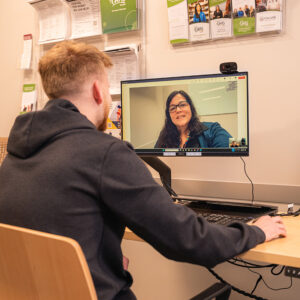 Prior to your visit, you’ll receive an appointment confirmation email and a reminder message via email or text message, depending on your preferred method of contact on file with CHAS Health.
To receive the messages, you must have previously consented to text and email messages. These messages will include the details of your visit and the link to your telehealth session. The initial confirmation email will also include a link to a pre-appointment device check, which gives you the option to test and troubleshoot your device settings any time before your appointment. In addition, you can access the link for your telehealth session any time by viewing your appointment details on the Patient Portal.
On the day of your appointment, the office staff may check you in over the phone prior. At that point, if you’re unable to locate the link, you may request that it be resent. You may also call the office to request your link be re-sent.
Frequently Asked Questions
No, you don’t need to log into the Patient Portal or download any kind of application to join the visit. The link will come directly to your preferred contact method as you’ve previously consented to such messaging with CHAS Health. The link and can be accessed via web browser on desktop or mobile. However, you can also access the link for your telehealth appointment on the patient portal.
Automated readiness checks are built into your video visit. In the confirmation message that contains details about your appointment, you’ll also be provided with a link to a device check. This will allow you to test your device settings and troubleshoot audio or video issues. This link will not be available in any reminder messages.
The provider will join the call as soon as they’re able, but the virtual waiting room will expire after 60 minutes. Upon entering, you’ll read a message stating that the call will begin when your provider or a practice staff member joins the call. When the visit is over and you leave the session, a “Thank you!” message will appear and inform you that you may close the window.
Yes, up to four users can participate in the call simultaneously including users from
both the patient and the provider side. If you require an additional participant to be present during the visit, you can share your visit link with them. When your second participant joins the call, they should enter their name and select their relationship to you from the dropdown (e.g. Jane Doe, Interpreter).
If you become accidentally disconnected in the middle of the visit, you can access the visit again using the same link you were initially provided or by refreshing your browser page.
Additional Resources
For more information, download the Joining a Virtual Telehealth Visit patient guide below